





Invoice Reminders automatically follow up on unpaid invoices using Invoice Stack’s email template. Add up to five reminders, each with its own timing, subject and message. Reminders are only available if you are sending invoices with Invoice Stack.
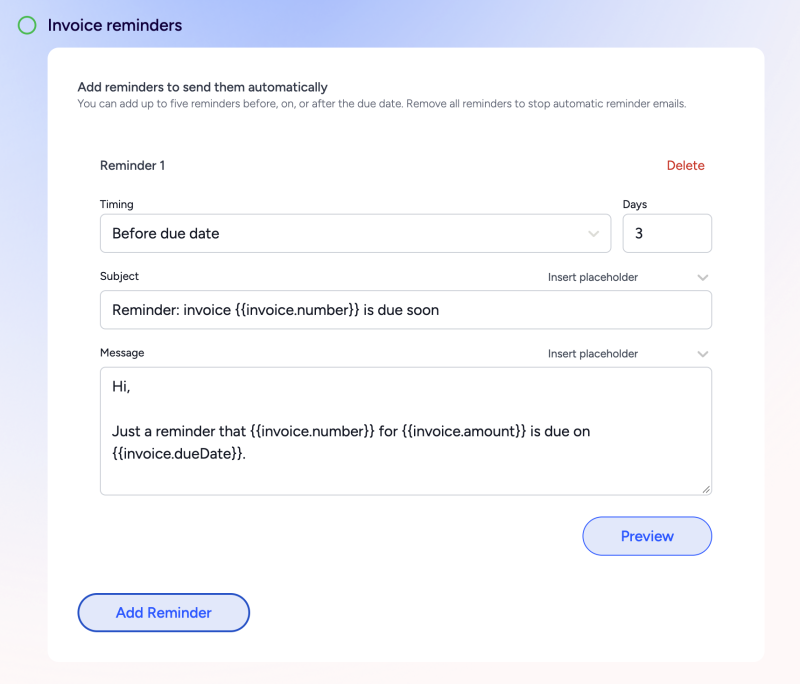
Set up reminders
- Open the Invoice Stack dashboard and go to Preferences → Send invoices.
- Select Send with Invoice Stack. Reminders are only available with this sending option.
- Under Invoice reminders, select Add reminder.
- Choose Before due date, On due date or After due date. For before or after, enter the number of days.
- Edit the subject and message. Use Insert placeholder to personalise them.
- Select Preview to check the complete email, then Save your settings.
For example, you could send reminders three days before the due date, on the due date, and seven days afterwards. Each reminder is calculated from the invoice’s due date, not from the previous reminder.
There is no separate reminder on/off switch: saving reminders enables them. Delete individual reminders to remove those steps, or delete all reminders and save to stop automatic reminders.
Reminders use your Invoice Stack email branding, footer, invoice PDF and view/payment link. Branding setup is optional: without custom settings, Invoice Stack uses a blue accent, no logo and noreply@pay.invoicestack.co as the reply-to address. You can customise these settings under Branding.
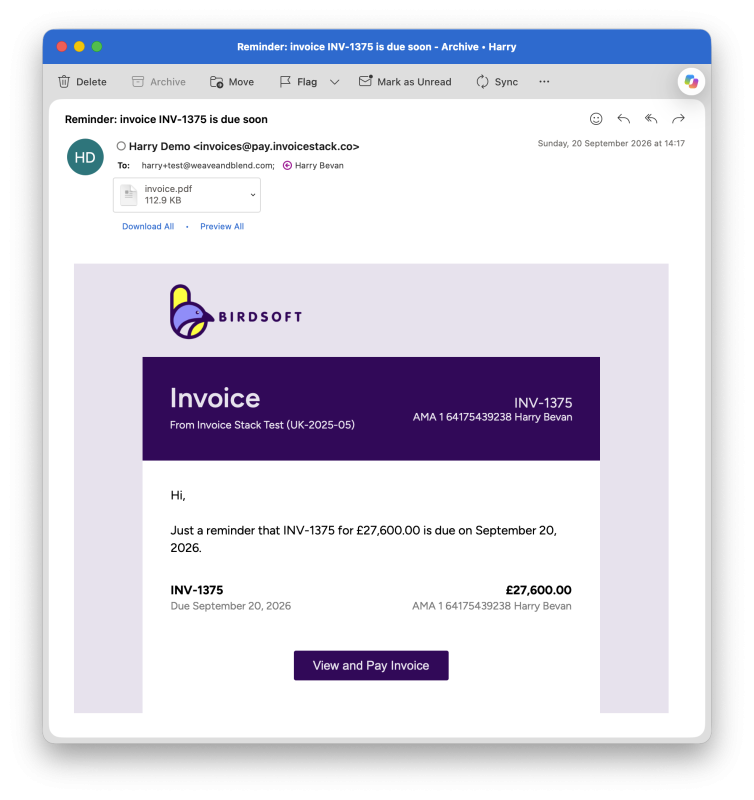
Personalise your messages
Placeholders insert invoice, organisation or deal information when the reminder is sent. These options are available from Insert placeholder in the subject and message editors:
| Option | Placeholder | Value used |
|---|---|---|
| Invoice number | {{invoice.number}} | The accounting invoice number |
| Invoice amount | {{invoice.amount}} | The remaining amount due, including currency |
| Invoice date | {{invoice.date}} | The invoice date |
| Invoice due date | {{invoice.dueDate}} | The payment due date |
| Invoice reference | {{invoice.reference}} | The invoice reference, where available |
| Organisation name | {{org.name}} | Your organisation’s name in Invoice Stack |
| Deal name | {{deal.dealname}} | The associated HubSpot deal’s name |
You can also type other HubSpot deal properties using {{deal.internal_property_name}}. Use the property’s internal name, not its display label. For example, if a property’s internal name is purchase_order, enter {{deal.purchase_order}}. A property with no value appears blank.
Example subject: Reminder: invoice {{invoice.number}}
Example message: Just a reminder that invoice {{invoice.number}} has {{invoice.amount}} outstanding and is due on {{invoice.dueDate}}.
Dashboard previews use sample values because they are not linked to a particular invoice. Actual reminders use the invoice and deal data. The email already contains a view/payment button, so you do not need to add a payment-link placeholder.
When reminders send
Reminders are checked daily during the 9am hour, using the connected HubSpot account’s time zone. For whole-hour time zones such as the UK, the scheduled check is currently around 9:17am. This includes weekends.
An invoice must be recorded in Invoice Stack, have a due date and outstanding balance, and already be marked as sent in Xero or QuickBooks. Reminders do not send the original invoice for you. Paid, voided, deleted and unsent invoices are excluded.
Invoice Stack also skips reminders when the invoice was created in Invoice Stack that calendar day, or a normal invoice email was sent through Invoice Stack earlier that day. This is a calendar-day rule, not a rolling 24-hour delay: an invoice created and sent yesterday afternoon can qualify this morning.
Before sending, Invoice Stack refreshes the invoice from Xero or QuickBooks and checks its eligibility again. Each configured reminder is tracked separately, so sending one does not block later reminders.
Reminders go to the invoice contact’s current email recipients in your accounting software. They do not reuse custom To, CC or BCC recipients from the original Invoice Stack email.
Already using Xero reminders?
Xero reminders and Invoice Stack reminders operate independently. Enabling Invoice Stack reminders does not disable Xero’s reminders or synchronise their schedules and pause settings. If both are enabled, customers may receive emails from both systems.
To use Invoice Stack for follow-ups, turn off Xero reminders for the relevant invoices, or for the organisation if appropriate. Xero supports both options in its guide to turning invoice reminders on or off. Pausing an invoice in Invoice Stack does not pause Xero’s own reminders.
Xero expected payment dates
If an invoice has an Expected Payment Date in Xero, Invoice Stack skips reminders scheduled on or before that date. Later scheduled reminders can still send if the invoice remains unpaid.
For example, an invoice due on 10 October has reminders scheduled for 17 and 24 October. If its expected payment date is 20 October, the 17 October reminder is skipped; the 24 October reminder can still send.
The expected payment date does not move skipped reminders to a later date or create a new reminder. Invoice Stack reads the current expected payment date when refreshing the invoice, so changing or removing it affects subsequent eligibility checks.
Pause one invoice
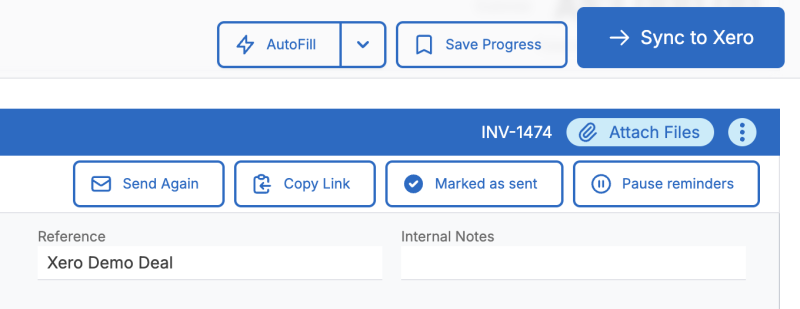
In the invoice view, select Pause reminders beside the sending buttons. Select Resume reminders to allow future scheduled reminders again. This applies to that invoice only, not every invoice on the deal.
When a current Xero expected payment date is suppressing reminders, the button shows Reminders paused and is disabled. Change the expected payment date in Xero if needed. This is separate from a manual pause: a manually paused invoice stays paused until you resume it.
What about existing invoices?
Invoices created before you enable reminders can receive them. There is no “new invoices only” cut-off. Existing invoices recorded in Invoice Stack are eligible when they meet the normal conditions and reach one of your scheduled reminder dates.
However, Invoice Stack does not catch up on missed dates. If you enable reminders when an invoice is already eight days overdue, a seven-days-overdue reminder will not be sent retrospectively. A fourteen-days-overdue reminder can still send when that date arrives.
The same applies to reminders skipped because an invoice was paused, newly created, sent that day or covered by an expected payment date. Resuming reminders does not replay those missed steps. Saving settings after the day’s scheduled check also does not trigger an immediate send.
Before enabling reminders, review existing unpaid invoices and pause any that should not receive follow-ups.
Reminder activity
Reminder activity, including sent, delivered, opened, clicked, bounced and failed statuses, is recorded in the associated HubSpot deal’s activity feed. For Xero invoices, these updates are also added to the invoice’s notes, so you can follow reminder activity in either system.