




Note: This feature is part of the Revenue Reports Addon for Invoice Stack Pro, and included Invoice Stack Enterprise. Your 21-day free trial also includes this feature.
What are Revenue Reports?
Revenue Reports Cards are built-in dashboards for companies and contacts - giving you instant reports into customer revenue and financials right inside HubSpot. It gives your Sales Teams or Account Managers amazing transparency on Invoices and Revenue, right where they need it, so they can spot revenue trends, troubleshoot invoicing and report on revenue.
What can you do?
- View all invoice for a Company or Contact
- View all invoiced revenue across your business, broken down by Company
- Accessible by your whole team (restricted access possible too)
- Visible in a single click from Company or Contact record
- Month by month invoice status, e.g. Draft, Authorised, Paid, Outstanding
- View top performing customers
- See linked deal, pipeline and owner for each invoice
- Multi-currency support
- Filter by accounting connection (if applicable)
- Reports based on HubSpot deal associations (e.g. deal to contact and deal to company)
- Download reports as a CSV
Where do the reports show in HubSpot?
Revenue Reports is shown as a HubSpot deal card on the Contact or Company record in HubSpot. Once installed, you'll see the deal card on the right hand side of the HubSpot screen.
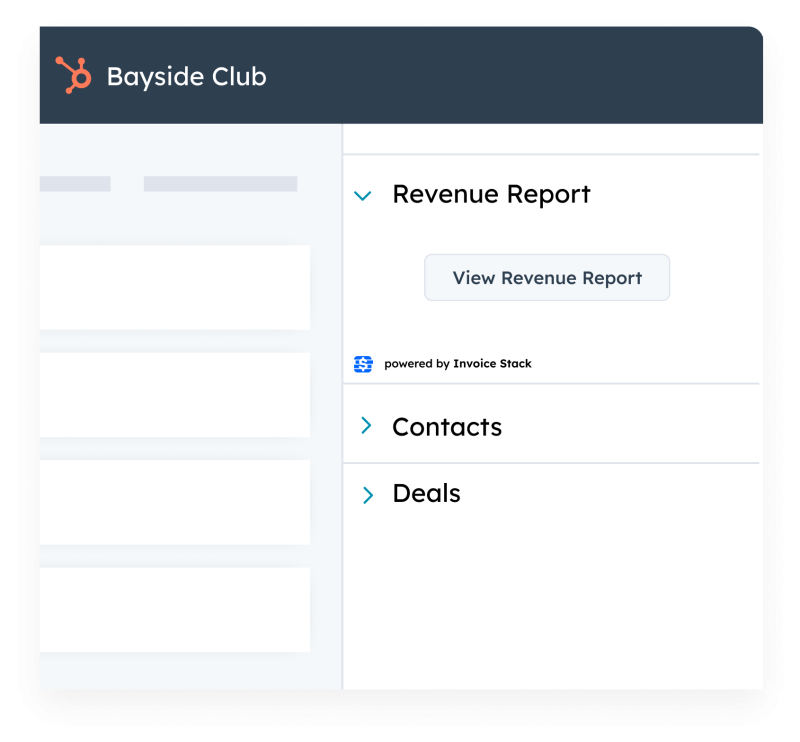
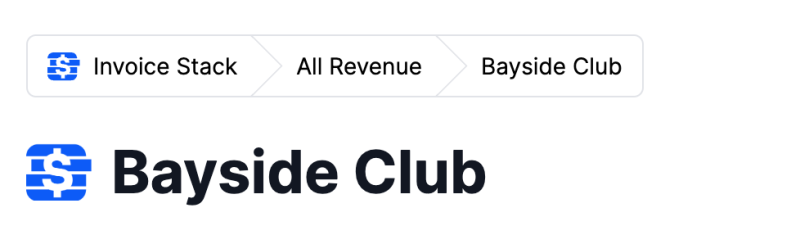
To view revenue for your whole business - just click in to the Revenue Reports from any Contact or Company, and click "All Revenue" in the navigation, as shown below:
How do permissions work, who can see the reports?
By default, Revenue Report cards are visible to everyone in your HubSpot account. You can restrict this access within HubSpot by customising the visibility of the Invoice Stack card on contact or company records, and you can do this by team or by record.
Out of the box, all users with access to Revenue Reports can view the "All Revenue" screen, and therefore see revenue across your whole business, even if users only have access to certain records. This can be turned off by contacting the support team.
Where does the data come from?
When you load up Revenue Reports, the app will find any HubSpot deal that's associated with that contact or company, and display the invoices linked to those deals. That means that if your contacts or companies are linked up in different ways to Xero, the data will still display correctly.
We even show the data across multiple accounting connections, for example, if you have invoices from multiple Xero accounts.
Revenue Reports only uses data from Invoices that are generated via Invoice Stack. If you're new to Invoice Stack, you can import past invoices into Invoice Stack - see here for further info.
We display all invoices generated from Repeating invoices in QuickBooks and Xero, but we don't show invoices that haven't been created yet - e.g. future invoices. This will be coming soon.
How is it different from HubSpot reports?
In Invoice Stack Pro + Enterprise you can use your HubSpot deal properties to create reports and dashboards inside HubSpot. However, because deals are one-dimensional, you cannot currently report on individual invoices, for example you cannot display revenue easily if it's split across multiple months.
Revenue Reports gives you access to pre-built reports that display this information.